
How to:

Here are some simple steps and instructions for common basics which you might be needing if where on support cell phone call on with us.

Powering Off Windows 11

Powering off Windows is very simple it can be done in 3 clicks.

1. Click the Start Menu
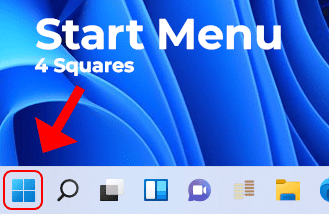
tinyicons - Edited

2. Click the Power Switch icon shown as "⏻"
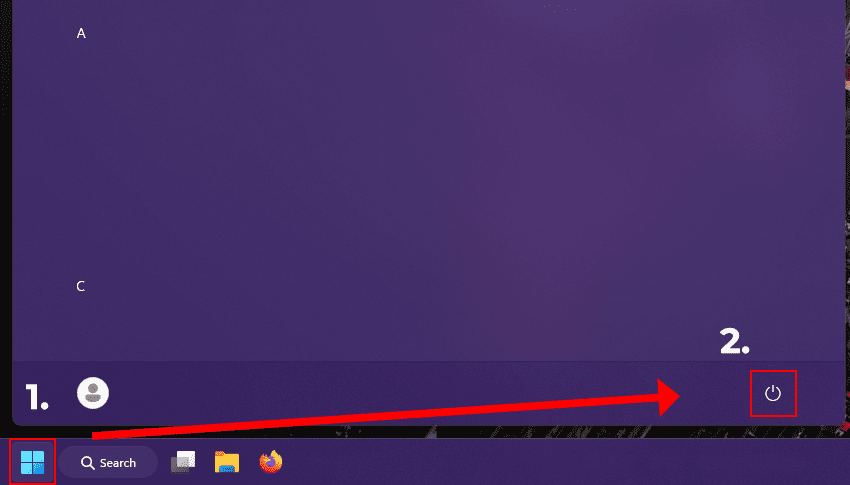
Screenshot 2026-04-10 220615 - Edited

3. Click you're desired option, of Shut Down, Restart. Thats it.

Connect to wifi in windows 11

Connecting to wifi in windows 11 is fairly simple. Pictures are worth a 1000 words, and are in order.

Unsubscribe from Annoying Emails

By US Law states that any email originating from the US there must be a Unsubscribe link in the footer (the bottom of the email) to allow you to unsubscribe. Called the "CAN-SPAM Act" Meaning "Controlling the Assault of Non-Solicited P*rnography & Marketing Act" from 2003. That law, enforced by the FTC, sets email standards that every commercial provider must follow.

  • Simply deleting emails isn't the answer or the solution if you're email account is getting bombarded by 1,000+ emails a day. 98.999% of emails you get from a newsletter are going to to be automated by nature.
  • Email filters are your friend, you can add keywords for subjects to block denoted by what that subject contains.
  • Emails that are in your Spam or Junk folder 95% of the time you should have your guard up for, malicious links are always a cause for concern and what to click on. All and any kind of email you get that's in your junk folder that's trying to mimic what facebook looks like or copy the layout of a important kind of email that would make you click it is something to take caution of. The way to know and how to solve if the email is legitimate or not is by verifying the headers of the email, where did it originate from. For an example: A facebook notification is going to originate from a "@facebook.com" Domain if its from a "@gmail.com or a non @facebook.com domain by default you should know One this email is in my junk folder, Two its not using facebook's official domain, Three the website styling or other minor details could be off just enough to make you think something visually isn't adding up here. Fourth you could be getting "phished" by a hacker that has created a really desirable highly clickable cause for action to need the reason to click right now so and so liked your post. This can come in any shape or form. With how vast the internet its constantly adapting and changing. Sometimes it only takes 1 click to become a victim of a piece of malware or be as far as being compromised. You can't always tell what is on the other side with emails that are in your Junk or Spam folders
  • There are 3 Parts to an Email. Header top of the Page, Body which contains your actual text of the email, Footer which is the bottom of the page, That contains an email.
  • Unsubscribing from an Email when looking in the footer of an email can be easy and difficult at the same time. Some companies can design there emails in weird ways. Like using light grey text with a white background and even without an underline to make the word unsubscribe in the bottom of a email stand out. It legitimately is a dice game of complexity of bad user interface some emails you can encounter where the creator of the email has created this so called "Dark Pattern" to making the ability to unsubscribe not visually appealing to the eye at times. So there can be a little bit of a learning curve to unsubscribing.

Automating Unsubscribing

There are tools for Unsubscribing as well too. They do work 90% of the time to help cut down on the amount of junk mail you receive.

2 Recommendations as of now & that are 100% free - Unroll.Me & Cleanfox. With Cleanfox being free they with transparency make there money by saying they do not sell your identity or personal email contents directly, but instead use:

  • Aggregated statistics
  • Anonymized purchase data
  • Consumer trend analysis

Some of these's tools can have small limitions like I have noticed they aren't able to integrate well with like tampabay.rr.com email providers. Some tools can even integrate into your web browser but they can only work for Gmail or only designed for a single purpose.

This one opensource tool is trying to make decluttering your email possiable. InboxWiz | Email Declutter its a tool thats gonna be continued to be devloped on and could in the future support other email providers.

Dealing with ISP Emails

Many people still use older ISP-provided email accounts that were originally created years ago when internet providers commonly bundled email service with home internet plans. While these accounts may still function, they often lack the modern spam filtering, security features, mobile app support, and inbox organization tools available through today’s dedicated email platforms. Over time, inbox clutter from newsletters, promotions, and unwanted subscriptions can become difficult to manage, especially on older email systems with limited filtering and unsubscribe features. Modern services like Gmail offer smarter spam protection, easier account recovery, powerful search tools, and built-in one-click unsubscribe options that make keeping your inbox clean much simpler. Another important advantage is portability — your email account stays with you even if you change internet providers in the future. Many long-time internet users have kept the same ISP email address for 10 or 15 years without realizing how much email technology has improved during that time. Moving to a modern email platform can help reduce inbox clutter, improve security, and create a more reliable long-term solution for personal and business communication.

Using disposable emails

What is better than having an email if you can just have a let it be a temporary email you can just use to get out what ever the person wants you to sign up for a newsletter than with a free temporary email tool. 96% of the time the temporary email accounts do work for there intended purpose. Sometimes the service you will using with the temporary email service with can and will filter out and only accept "@gmail", "@yahoo", "@icloud" & Major emails and weeding out the rest if the website is sophisticated enough for that.

  • Minuteinbox - This one is the best I have found because it will let you have a single address last up to a 1 month's worth of time.
  • 10 minute mail service - This one is your average traditional actual 10 minute mail service. you can always extend the time limit if you need it for a bit longer.

One of the coolest benefits of a disposable temporary email is if you were forced into having to make an account for a service you barely would use like lets say a 3D printer site requires you to have an account to download a file you could use a temporary email to make an account without having to use your own personal email. I have found that some sites that force accounts on people can sometimes even disable accounts after 12 to 48 hours if they notice that the account that was made isn't a account made from a normal email account making the account you make all that more temporary anyways and you get what you wanted out of it anyways a free download to some 3D STL file if that's what you were needing to do.

Common Computer Shortcuts

Anything with the Windows Key, is normally the Command Key with Apple Mac OS, this is a small window into shortcuts and what they can do.

Universal Shortcuts

Ctrl + C = Copy

Ctrl + V = Paste

Ctrl + Shift + V = Paste without formating

Ctrl + A = Select all

Ctrl + X = Cut (removes original when pasted)

Ctrl + Z = Undo (works universally anywhere)

Ctrl + P = Print Preview

Text Editor Universal Shortcuts

Works in Browsers (find out what sites they work or dont work on), Office Text editing applications & more

Ctrl + B = Bold the text

Ctrl + i = Italic

Ctrl + U = Underline

Program Specific

Within Winodows Program shortcuts can be adatapted so that programs can and do change what you might know for 1 program can be slightly different in reality.

Google Chrome or (chromium based browsers)

Ctrl + J = Downloads (also works in firefox)

Ctrl + H = History

Ctrl + Shift + O = Bookmarks/ Favorites manager

Windows Specific Shortcuts

Windows Key + V = Clipboard History (not enabled by default, holds 25 items, All non-pinned items are erased when you turn off or restart your computer.) its a nice entry level option for everyday users.

Windows Key + Shift + S = Screenshot snipping

MacOS Specific Shortcuts

Control Key = This is normally used with left click changes your left click into a right click function, this is a Apple choice unless you change it in settings for the trackpad/ touchpad.

Option (alt) + Command + V = by defalut Macos when your using Finder and you copy a file then want to paste it, Macos will just make a copy and duplicate your files and wont move them. Without this shortcut being used. This is the Move operation.

Command + Space bar = Spotlight Universal Search

Command Key + Shift + 5 = Screenshot Tool Menu This gives you full control over where its saved, and what you want to capture.

Command Key + Shift + 4 = Rectangle screenshot selection tool, saves to the default place of the desktop, can also be changed by the number 5 key instead of 4.

Command Key + Shift + 3 = Full screen capture saves in the default place on the desktop, can be changed with the number 5 key instead of 3.

Command Key + Shift + 6 = ONLY of touch bar macs gives you a full screen capture of the touch bar its self.