
How to:
Here are some simple steps and instructions for common basics which you might be needing if where on support cell phone call on with us.
Powering Off Windows 11
Powering off Windows is very simple it can be done in 3 clicks.
1. Click the Start Menu
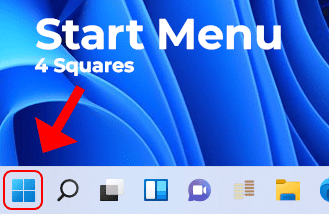
2. Click the Power Switch icon shown as "⏻"
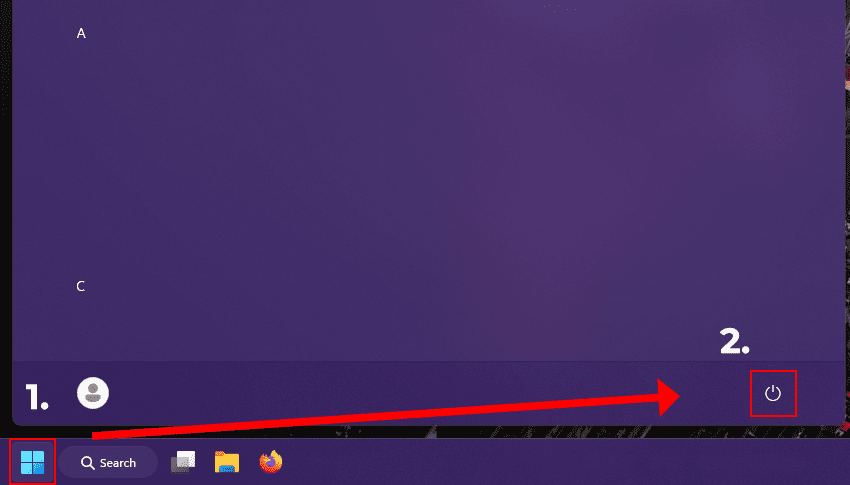
3. Click you're desired option, of Shut Down, Restart. Thats it.
Connect to wifi in windows 11
Connecting to wifi in windows 11 is fairly simple. Pictures are worth a 1000 words, and are in order.
Common Computer Shortcuts
Anything with the Windows Key, is normally the Command Key with Apple Mac OS, this is a small window into shortcuts and what they can do.
Universal Shortcuts
Ctrl + C = Copy
Ctrl + V = Paste
Ctrl + Shift + V = Paste without formating
Ctrl + A = Select all
Ctrl + X = Cut (removes original when pasted)
Ctrl + Z = Undo (works universally anywhere)
Ctrl + P = Print Preview
Text Editor Universal Shortcuts
Works in Browsers (find out what sites they work or dont work on), Office Text editing applications & more
Ctrl + B = Bold the text
Ctrl + i = Italic
Ctrl + U = Underline
Program Specific
Within Winodows Program shortcuts can be adatapted so that programs can and do change what you might know for 1 program can be slightly different in reality.
Google Chrome or (chromium based browsers)
Ctrl + J = Downloads (also works in firefox)
Ctrl + H = History
Ctrl + Shift + O = Bookmarks/ Favorites manager
Windows Specific Shortcuts
Windows Key + V = Clipboard History (not enabled by default, holds 25 items, All non-pinned items are erased when you turn off or restart your computer.) its a nice entry level option for everyday users.
Windows Key + Shift + S = Screenshot snipping
MacOS Specific Shortcuts
Control Key = This is normally used with left click changes your left click into a right click function, this is a Apple choice unless you change it in settings for the trackpad/ touchpad.
Option (alt) + Command + V = by defalut Macos when your using Finder and you copy a file then want to paste it, Macos will just make a copy and duplicate your files and wont move them. Without this shortcut being used. This is the Move operation.
Command + Space bar = Spotlight Universal Search
Command Key + Shift + 5 = Screenshot Tool Menu This gives you full control over where its saved, and what you want to capture.
Command Key + Shift + 4 = Rectangle screenshot selection tool, saves to the default place of the desktop, can also be changed by the number 5 key instead of 4.
Command Key + Shift + 3 = Full screen capture saves in the default place on the desktop, can be changed with the number 5 key instead of 3.
Command Key + Shift + 6 = ONLY of touch bar macs gives you a full screen capture of the touch bar its self.